


Office Reader - WORD/PDF/EXCEL
4.4317.00 Reviews
App Specs
- Version
- 2.1.20
- Updated On
- License
- Free
- Downloads
- 10,000,000+
- Developer
- ZipoApps
- Categories
- Productivity
- Platform
- Android
Screenshots
 Analysis by AppCompare
I judge a document app not only by whether it opens a file, but by how much effort it asks from someone trying to read, locate, or make sense of that file on a small screen. Office Reader - WORD/PDF/EXCEL is a free productivity app from ZipoApps that brings several familiar office formats together on mobile. Its appeal is straightforward: one place to browse common documents instead of repeatedly switching between separate viewers. That can be useful for students, people handling paperwork, and anyone who needs to check a file away from a computer. The important question is whether that convenience holds up for different reading habits and real-life situations.
Readability and navigation across document types
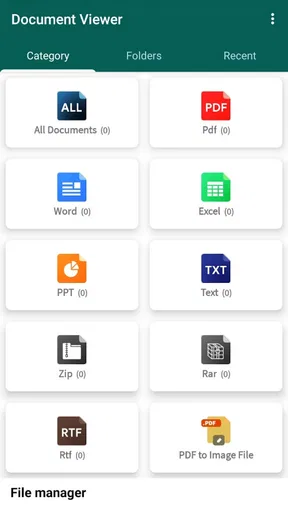
The app is organized around Word, PDF, and Excel files, which gives the opening screen a practical purpose: it helps me think in terms of the document I need rather than a maze of unrelated tools. That kind of grouping can make a difference when I am looking for one attachment among a mixed collection. Still, a tidy starting point is only the first step. Long pages, dense spreadsheets, and documents with small text remain harder to work through on a phone than on a larger display, regardless of how clearly an app sorts them.
For a better reading session, I would use the file categories as a first pass, then narrow the task. If I need to find a clause in a lengthy document, searching for a distinctive word is often more efficient than scrolling and hoping to spot it. If I am checking a spreadsheet, I would first identify the relevant sheet and cells rather than trying to understand the whole workbook at once. These habits are especially helpful on a compact screen, where repeated zooming and back-and-forth movement can interrupt concentration.
Dark mode is a useful option for people who prefer a darker display, particularly in dim surroundings. It may make a session feel more comfortable, but it is not a substitute for larger text or a bigger screen, and contrast preferences vary from person to person. I would treat it as a choice to test rather than assume it improves readability for everyone. Likewise, searching can reduce navigation effort, but it works best when I know a likely term; it cannot replace careful reading when the meaning depends on the surrounding paragraph or table.
Motor and sensory considerations in everyday use
On a phone, document work often means tapping small controls, selecting text, moving around a page, and switching between reading and editing. That can be manageable for a quick correction but tiring for someone who finds precise touch gestures difficult. When I only need to review a document, I would avoid unnecessary edits and use a larger display if accurate selection matters. For a brief note or an occasional markup, a mobile editor is convenient; for extensive formatting, a keyboard and desktop-sized workspace usually offer better control.
Sensory needs also depend on the file itself. A brightly formatted spreadsheet, a scanned page, and a plain text document place different demands on the reader. Dark mode may suit one setting and feel less comfortable in another, while enlarging content can help with small print but require more scrolling. Rather than trying to read a long file in one continuous pass, I find it more practical to search for a section, inspect it at a comfortable zoom, and take a pause before moving on. That approach reduces the strain of navigating dense content on a handheld screen.
There is a useful distinction between being able to open a document and being able to work with it comfortably. A quick glance at a meeting agenda is a natural mobile task; comparing multiple columns in a wide spreadsheet is not. If a file is visually complicated or the consequences of a mistaken tap are significant, I would use a larger screen and take time to check the result. The app can make documents more accessible in the sense of having them close at hand, but the phone form factor still sets limits.
Worth Reading Before You Choose

EA SPORTS FC Mobile 26 Is a Bigger Football Game, but It Takes Time

Flipboard Shows What News Apps Must Do Beyond the Feed

Switching to Android Auto Means Rethinking Your Driving Routine

Google Calendar Makes a Crowded Week Easier to Manage

Ludo King Makes the Most of the Minutes Between Plans

Baby Panda World Brings Quick Play to Modern Phones, but Its Game Library Feels Busy
Situational access: the right file at the right moment
A realistic use case is a student leaving class who needs to check a handout, then review a spreadsheet shared for a group project while waiting for a ride. Keeping those formats in one app can save the interruption of finding a different viewer for each file. A worker might similarly open a PDF form before an appointment or check a Word document while away from a desk. In these short sessions, quick access is more valuable than a full desktop-style editing experience.
Offline access is helpful when a document has already been made available on the device and a connection is unreliable. I would prepare important files before travelling rather than assume every cloud-stored document will be ready without internet. Cloud services such as Google Drive and Dropbox can fit into a workflow for retrieving or syncing files, but it is still sensible to check that the specific document is present before leaving a reliable connection. That small precaution avoids discovering at the wrong moment that a file has not been downloaded.
Compared with using separate format-specific apps, a combined reader is appealing when the main goal is to open different files with minimal switching. Dedicated office suites can be a better fit for complex collaboration or heavy editing, while a PDF-focused tool may suit someone whose work depends on specialized PDF tasks. I see Office Reader as most useful in the middle ground: checking, reading, and making modest changes to a variety of documents. The trade-off is that one app covering several formats may not provide the depth or fine control of a specialist tool for every task.
Remaining barriers and practical trade-offs
Editing on a phone calls for realistic expectations. Even when an app lets me alter a document, a small display makes it harder to judge page layout, select exact text, and keep track of changes across a long file. I would use mobile editing for a correction or a quick adjustment, then review important work carefully on a larger screen when possible. This is particularly worthwhile for documents that will be printed, submitted, or shared with others, where a formatting shift could matter more than the convenience of finishing immediately.
Spreadsheets need extra care. A formula may be visible and a value may be easy to change, but checking how an edit affects a larger workbook is more demanding on a phone. For a simple lookup or a small correction, mobile access can be enough. For comparing many rows, reviewing linked calculations, or making substantial structural changes, I would choose a desktop spreadsheet tool. That is not a reason to avoid this app; it is a reminder to match the task to the screen and to verify important edits.
Cost is another practical consideration. The app is free to install, with in-app purchases ranging from $0.99 to $99.99 per item, so I would check what is included before relying on a paid option. It has a 4.5 average from around 143,000 ratings and over 10 million installs, signs that many people have tried it, but popularity cannot tell me whether a particular workflow or interface will suit my needs. It is rated for Everyone, runs on Android 5.0 or later, and version 2.1.20 is the current version. I would still judge it by testing the kinds of files I actually use.
Who is likely to benefit—and who may prefer another tool
I would recommend trying it if you regularly receive a mix of Word, PDF, and Excel files and want a single mobile place to open them. It makes sense for students reviewing course material, people checking forms while out, and office workers who need occasional access away from a computer. It is less compelling if you mainly create polished documents, depend on advanced spreadsheet workflows, or need highly precise editing for extended periods. In those cases, a full office suite on a computer or a specialist app is likely to feel more comfortable.
Before adopting it as your only document tool, I would test one file of each kind that matters to you: a longer text document, a PDF with the layout you usually encounter, and a spreadsheet with the complexity you need to check. Try finding a specific passage, moving around the spreadsheet, and making a harmless edit. This quick trial reveals more than a general feature list because it shows whether the file remains readable at your preferred zoom and whether the controls suit your hands and habits.
It is also worth deciding what you mean by “work on a document.” If that means reading, locating a detail, adding a modest annotation, or correcting a small passage, the phone can be a useful workspace. If it means producing a carefully formatted report or auditing a workbook, I would treat the app as a companion for access rather than the main tool. Keeping that boundary clear helps avoid frustration and makes the app’s convenience more valuable.
Getting Started: First Impressions
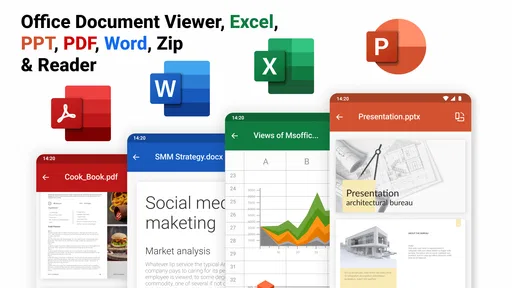
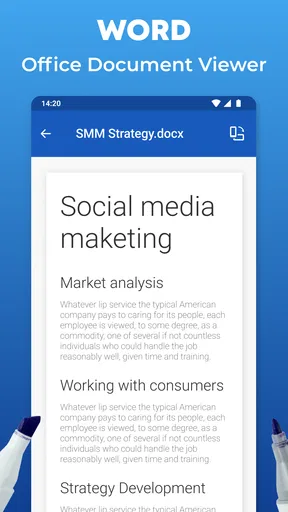
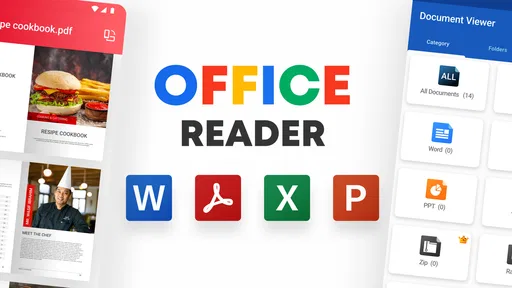
Upon installing Office Reader - WORD/PDF/EXCEL, the first thing that struck me was its clean and intuitive interface. You know how some apps just bombard you with a ton of features upfront? Well, this one keeps it simple, which is refreshing. The main screen neatly categorizes your documents into Word, PDF, and Excel, making it super easy to navigate.
Feature Dive: What Makes It Tick?
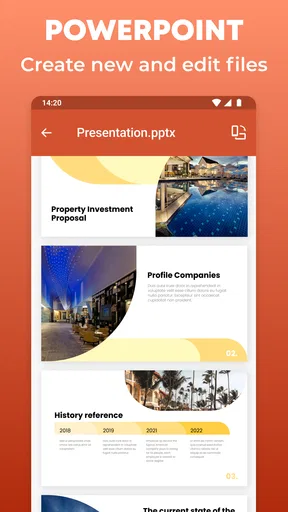
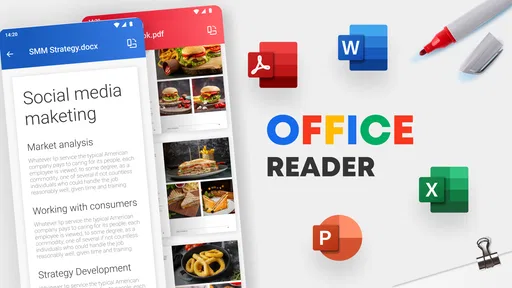
Alright, let’s get into the juicy details. The app supports viewing and editing for a variety of document types. Whether it’s a Word doc, a PDF file, or an Excel spreadsheet, you’re covered. I found the editing capabilities quite robust, especially considering it’s a mobile app. You can tweak text, adjust layouts, and even insert images without much hassle.
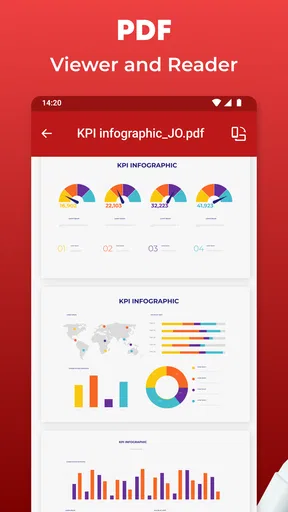
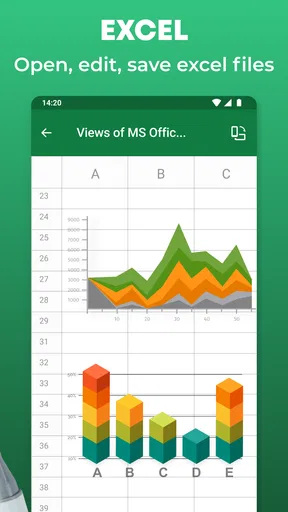
One feature that really stood out to me was the PDF reader. It’s not just about reading; you can annotate, highlight, and even sign documents. This is a game-changer if you’re often on the go and need to sign documents digitally. The Excel support is pretty solid too. I was able to handle complex spreadsheets with ease – formulas and all.
Performance and Usability
In terms of performance, I didn’t experience any lag or crashes, which is a huge plus. The app opens documents quickly and the transitions are smooth. I’ve used a few apps in the past that took ages to open a simple PDF, but not this one. It’s quick and responsive, which is exactly what you need when working under time constraints.
Usability-wise, the app supports cloud integration, allowing you to sync with services like Google Drive and Dropbox. This means you can access your documents from anywhere, and that’s a lifesaver for someone like me who tends to forget to transfer files manually.
Little Extras: The Cherry on Top
Let’s talk about the little extras that make this app special. The search function is quite powerful; you can search through documents with ease, which saves a lot of time when you’re looking for a specific piece of information. There’s also a dark mode feature for those late-night work sessions. It’s easy on the eyes and helps conserve battery life.
Oh, and did I mention the app’s offline capabilities? You can download documents and work on them without an internet connection. This is perfect for those times when you’re traveling or in a place with spotty Wi-Fi.
Final Thoughts: Is It Worth It?
In my humble opinion, Office Reader - WORD/PDF/EXCEL is a must-have if you frequently deal with documents on your mobile device. Its combination of a user-friendly interface, robust features, and smooth performance makes it a standout choice. Whether you’re a student, a professional, or just someone who wants to keep their documents organized, this app has something to offer.
So, if you’re in the market for an all-in-one document reader and editor, give Office Reader - WORD/PDF/EXCEL a try. You might just find it to be the perfect companion for your document management needs. Happy reading and editing!
An inclusive fit for everyday document work
What I like most about the app’s role is its practicality: it can bring common office files within reach without requiring me to sit at a desk for every quick check. For someone who reads short sections, searches for a detail, or needs to sign a PDF while away from home, that accessibility can make a real difference. I would not describe that as a substitute for every accommodation or a guarantee that every file will be easy for every person to use. The actual experience depends on the document, the phone, and the reader’s preferences.
My inclusive verdict is therefore positive but measured. Office Reader gives people a convenient way to approach several familiar formats from one mobile app, and features such as search, dark mode, offline use, and cloud access can support different situations. Its strongest role is quick, flexible access; lengthy editing, dense layouts, and precise spreadsheet work remain better suited to a larger screen or a specialized tool. If that balance matches your needs, it is worth trying with your own documents before making it part of your routine.
Pros
- Supports multiple file formats seamlessly.
- User-friendly interface enhances productivity.
- Quick file conversion and sharing options.
- Offline access to documents available.
- Customizable viewing options for ease.
Cons
- Limited advanced editing features.
- Occasional ads disrupt user experience.
- Some features require in-app purchases.
- Compatibility issues with older devices.
- No real-time collaboration support.
FAQs for Office Reader - WORD/PDF/EXCEL
What file formats can Office Reader handle?
Office Reader is designed to support a wide range of file formats, including Word documents (DOC, DOCX), PDFs, and Excel spreadsheets (XLS, XLSX). This versatility ensures you can access and edit your files seamlessly, making it a one-stop solution for all your document management needs on both Android and iOS devices.
Is Office Reader available for offline use?
Yes, Office Reader offers offline functionality, allowing users to view and edit documents without an active internet connection. This feature is particularly useful for those who need to work on-the-go or in areas with limited connectivity, ensuring uninterrupted productivity at all times.
Does Office Reader support cloud storage integration?
Absolutely, Office Reader integrates smoothly with popular cloud storage services like Google Drive, Dropbox, and OneDrive. This means you can easily access and save your documents directly to the cloud, facilitating efficient file management and collaboration across different devices.
How user-friendly is the interface of Office Reader?
The interface of Office Reader is designed with user-friendliness in mind. It features a clean, intuitive layout that makes navigation straightforward, even for beginners. With helpful tools and easy-to-access menus, users can quickly find and use the features they need without any hassle.
Are there any costs associated with using Office Reader?
Office Reader offers a free version with basic features, while premium subscriptions unlock additional functionalities and remove ads. The premium version is ideal for users who require advanced editing tools and an ad-free experience, providing more value for those who use the app extensively.


